


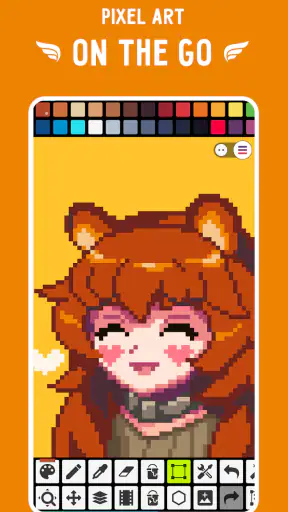
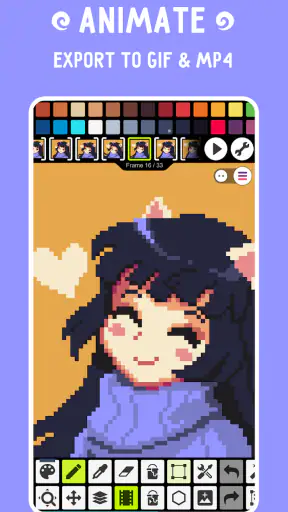
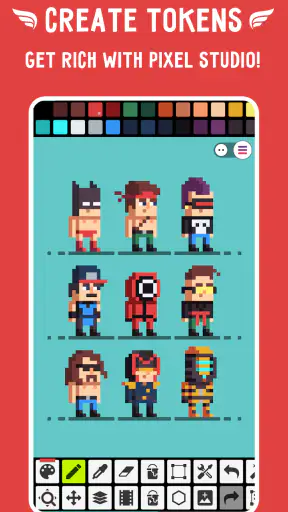
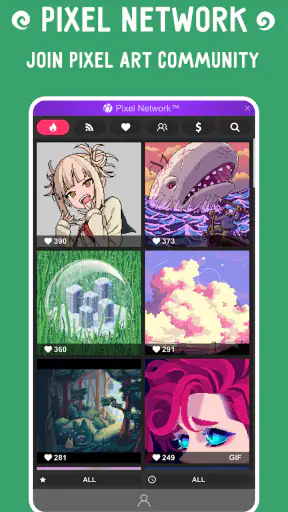
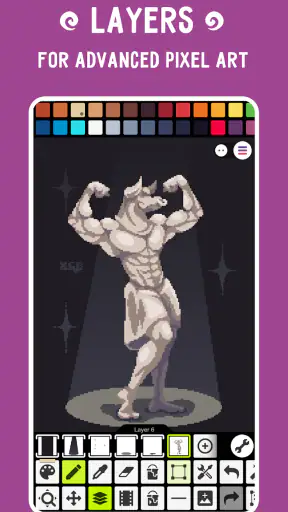
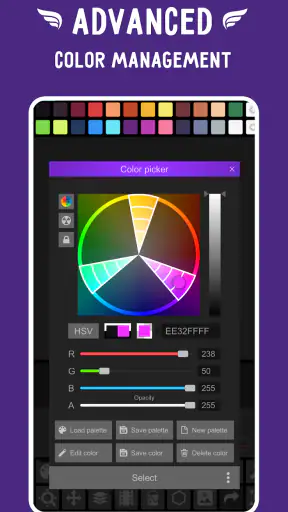
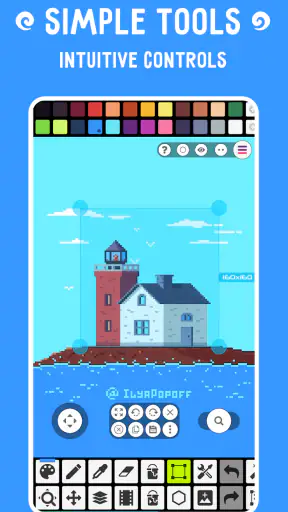
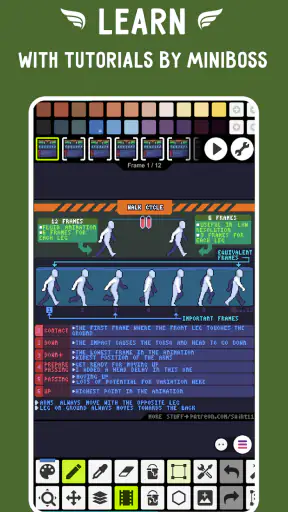
Pixel Studio: pixel art editor is the kind of app I would suggest to someone who wants to try pixel art without turning the first session into a technical project. It is a free art and design app from Hippo Games AM, made for creating pixel-based images on a mobile device. After spending time with it, I found its main appeal quite clear: it puts the basic pixel-art workflow close at hand, so I can sketch, correct, and experiment whenever I have a few spare minutes.
The straightforward presentation is important here. Pixel art can look simple because the final image may contain only a small number of squares, but careful placement, color choice, and cleanup still take patience. This editor makes that small-scale work feel approachable. It is not trying to replace every desktop art program, and I would not choose it for large illustrations or general photo editing. Its strength is being a focused workspace for deliberately building images one pixel at a time.
The app has earned a 4.6 average from around 92 thousand ratings, with more than 5 million installs. Those figures do not tell me whether every artist will enjoy the interface, but they do suggest that the basic idea has found a substantial audience. It is rated for Everyone, which also makes it a reasonable starting point for younger artists, students, hobbyists, and anyone curious about the style.
Getting comfortable with the pixel-art workflow
What to expect when you open the editor
My first recommendation is to approach this as a drawing tool with a very specific purpose, rather than as a miniature version of a full desktop suite. The canvas is the center of attention, and the useful habit is to think in clusters of pixels instead of smooth strokes. A line is not really a line in the traditional drawing sense; it is a sequence of carefully chosen blocks that needs to look intentional at its final size.
That difference affects how I use the app. I start with a simple shape, such as a small character, badge, fruit, or object with a clear silhouette. I do not begin with a complicated scene. Pixel Studio: pixel art editor is much more rewarding when I can see a recognizable result quickly, then add detail after the outline works. This approach also prevents a common beginner mistake: spending time on tiny highlights before the overall form is readable.
The app’s store summary describes it as simple, fast, and portable, and that matches my practical impression more than a promise of professional illustration tools would. Its portable nature matters because pixel art benefits from short editing sessions. I can adjust a corner, try a different color relationship, or clean a stray mark without setting up a full workstation.
There is also a useful mental adjustment for touch input. On a phone, my finger can cover the exact area I am trying to edit, especially on a small canvas. I get better results by zooming in for placement and then checking the image at a smaller view before deciding that a change works. A pixel that looks perfect while enlarged can create an awkward bump or gap when the whole design is visible.
First setup: begin with a manageable canvas
For a first session, I would create a small project with a single subject and a limited palette. The goal is not to produce a portfolio piece immediately. The goal is to learn how the canvas, color selection, drawing controls, and undo behavior feel under my fingers. A small image gives every action visible meaning, which makes the interface easier to understand than an empty, oversized project.
I usually choose a subject with a strong outline: a heart, a simple plant, a cup, or a tiny animal. I place the main silhouette first, leaving room around it rather than filling the canvas edge to edge. Once the outline reads clearly, I add one interior color and then a restrained shadow or highlight. This three-stage workflow gives a beginner a useful checkpoint after each step.
One detail that matters more than it first appears is color discipline. Pixel art can become muddy when every available color is used without a plan. I prefer to decide which color is the background, which color carries the outline, and which colors describe the object. Even when the app makes experimentation easy, keeping the first project visually limited helps me see whether the shape itself is working.
The current version is 5.51 and it runs on Android 7.0 or later. That makes it accessible on many older Android devices, although the experience will still depend on the screen size and how comfortable the device is for precise touch work. I would use a larger phone or tablet when possible, not because the app requires a high-end setup, but because more room makes pixel placement less tiring.
Your first meaningful success
The first satisfying milestone is not learning every tool. It is completing a tiny image that remains recognizable when viewed normally. I suggest drawing the silhouette, checking it at a reduced view, and only then adding a few internal marks. If the object stops reading after the details go in, undoing those details is more useful than continuing to decorate it.
In everyday use, I might open the editor during a commute or while waiting for an appointment and work on a small icon. I can spend one session shaping the outline, leave the image alone, and return later to test colors. That stop-and-start rhythm suits pixel art particularly well because the work is made of discrete decisions rather than long continuous brush movements.
A practical trick is to use symmetry as a planning aid even when the final object will not be perfectly symmetrical. I build one side of a face, shield, leaf, or emblem, compare the balance, and then introduce small differences afterward. This reduces the amount of correction needed and helps me understand how individual pixels affect the visual weight of the design.
Another useful habit is to keep an original version before making a risky change. If I decide to alter the outline color or remove a large area, I want a safe point to return to. This is especially valuable on a touch screen, where a quick gesture can affect more of the drawing than intended. Saving a clean stage before experimentation turns mistakes into comparisons rather than disasters.
Where beginners commonly get confused
The biggest source of confusion is the gap between zoomed-in editing and the final appearance. At high magnification, a one-pixel adjustment can feel dramatic. At normal viewing size, it may be invisible, or it may change the expression and balance of the whole image. I make a habit of switching between close inspection and the full composition instead of trusting only the enlarged view.
Touch precision is another adjustment. I sometimes place a mark beside the intended pixel because my finger lands slightly away from the target. Rather than repeatedly tapping in frustration, I zoom further, use deliberate single actions, and inspect the result immediately. If the canvas feels cramped, a tablet can be a better choice than a phone for detailed work.
Beginners can also mistake detail for quality. A busy image is not automatically a better image. If the silhouette is unclear, adding texture usually makes the problem harder to diagnose. I recommend temporarily removing decorative pixels and asking whether the subject still reads through its outline and major color blocks.
Color changes can create a similar problem. Two shades may look distinct in the picker but merge visually once surrounded by other tones. I test colors beside the area where they will actually be used, then view the complete image. This small check is more reliable than choosing colors in isolation.
The app is free to install, while in-app purchases range from $2.99 to $17.99 per item. I would begin with the free experience and decide later whether the additional purchase options fit my needs. For a casual user making occasional icons, paying may not be necessary. For someone who uses the editor regularly, it is worth considering what extra convenience or capability matters before spending money rather than assuming every paid option will improve the workflow equally.
Turning a first sketch into a repeatable process
Once the first image is complete, I would not immediately jump to a much larger project. A better next step is to make a small set of related images: several expressions for one character, a few versions of the same object, or a group of icons using the same visual language. This exposes inconsistencies in outline thickness, color choices, and proportions that are easy to miss in a single drawing.
I also find it useful to separate construction from decoration. First I decide the shape and placement. Then I add shadows and highlights. Finally I inspect the image for isolated pixels that do not support the form. This order makes the work easier to revise because I know whether a problem comes from the structure or from the surface detail.
For animation-minded users, even a series of still images can be a worthwhile exercise. I can draw a character in a few slightly different poses or create a simple change in expression, concentrating on keeping the proportions stable. The app is a sensible place to practice that frame-by-frame thinking, although anyone seeking a specialized animation production environment may eventually prefer a tool built specifically around timelines and playback.
Likewise, people creating assets for a game or personal project should think about consistency from the beginning. I would choose a recurring outline treatment and a small group of related colors before drawing a whole collection. The editor can help me make individual pieces, but the quality of a set depends on decisions made across the set, not on any single canvas.
Who will enjoy it, and who should choose something else?
I think Pixel Studio: pixel art editor is a strong fit for beginners who want a direct introduction to pixel drawing, hobbyists who enjoy compact creative projects, and experienced artists who need a portable place for quick edits or sketches. It is also useful for people who prefer learning by making small finished objects instead of studying a long list of tools first.
I would be more cautious about recommending it to someone who wants a broad digital painting application. If smooth brushes, complex compositing, advanced typography, photo manipulation, or a large desktop-style workspace are the priority, a general illustration app will probably be more suitable. Pixel Studio is focused, and that focus is both its appeal and its boundary.
The same trade-off applies to users who dislike working at pixel level. The app does not remove the deliberate nature of the style. It can make the process portable and approachable, but it cannot make every design decision automatic. If I want loose sketching with pressure-sensitive brushwork, I would look elsewhere. If I want crisp, block-based images that I can build carefully on a mobile device, this is a much better match.
Compared with drawing in a general-purpose phone editor, this app feels more appropriate for pixel work because the entire task is organized around small, exact marks. Compared with a desktop pixel-art program, it is more convenient for quick sessions but less comfortable when a project demands a large workspace, extensive asset management, or a keyboard-and-mouse workflow. I see it as a focused companion rather than a universal replacement.
Practical questions before you commit
If you are wondering whether it is suitable for a first attempt, my answer is yes, provided you start small. A simple icon or object gives you enough room to learn the controls without making every mistake expensive. The first meaningful result can arrive quickly when you prioritize a readable silhouette over elaborate shading.
If you are deciding between a phone and a tablet, I would choose the larger screen for detailed projects and the phone for convenience. The app’s portable design is valuable, but precision is still easier when the canvas does not compete with your fingertip. A phone remains perfectly workable for small images and quick corrections.
If you are concerned about paying, the app is free to start, with optional in-app purchases listed from $2.99 to $17.99 per item. I would use it long enough to identify a real limitation in my own workflow before buying anything. That makes the decision personal and practical instead of treating paid options as a prerequisite.
If you want to create game graphics, I would begin with a visual test rather than a full asset pack. Make one character, one object, and one background element, then view them together. If their outlines and colors feel related, continue. If they clash, revise the style guide before producing dozens of images.
If you simply want a relaxing creative activity, avoid measuring success by complexity. A small, clean image is a valid result. I get more enjoyment from finishing a compact design and learning one new technique than from starting a huge scene that becomes difficult to manage.
The next step after the first finished image
After completing a first project, I would save it as a reference and make a second version with one controlled change. Try a different background, alter the outline color, or simplify the shading, but do not change everything at once. Comparing two deliberate variations teaches more about the editor and about pixel-art choices than random experimentation.
From there, a personal mini-project works well: a set of icons for a fictional menu, a tiny collection of plants, or a character with several expressions. Keep the subject matter narrow enough that you can notice consistency. This is where the app becomes more than a doodling tool; it becomes a practical place to develop a repeatable visual style.
My overall impression is positive because the app understands what makes mobile pixel art appealing. It gives me a focused canvas, encourages short sessions, and does not require me to treat every drawing as a major production. The limitations are real: touch input can be fiddly, small screens can become tiring, and artists needing a broad professional suite may outgrow it.
Still, for someone taking the first step, those limits are easier to manage than the complexity of a general art package. I would install it when I wanted to learn the logic of pixel art through actual practice, not through a crowded interface. With a small canvas, a restrained palette, and regular checks at normal size, I could move from a blank screen to a finished little image without feeling lost. That makes Pixel Studio a convincing recommendation for portable pixel-art work, especially when simplicity and immediate progress matter more than having every advanced feature in one place.


